
Sumbios O: Product Guide
Welcome to Sumbios O. Your network is your net worth, and O is the companion built to unlock it.
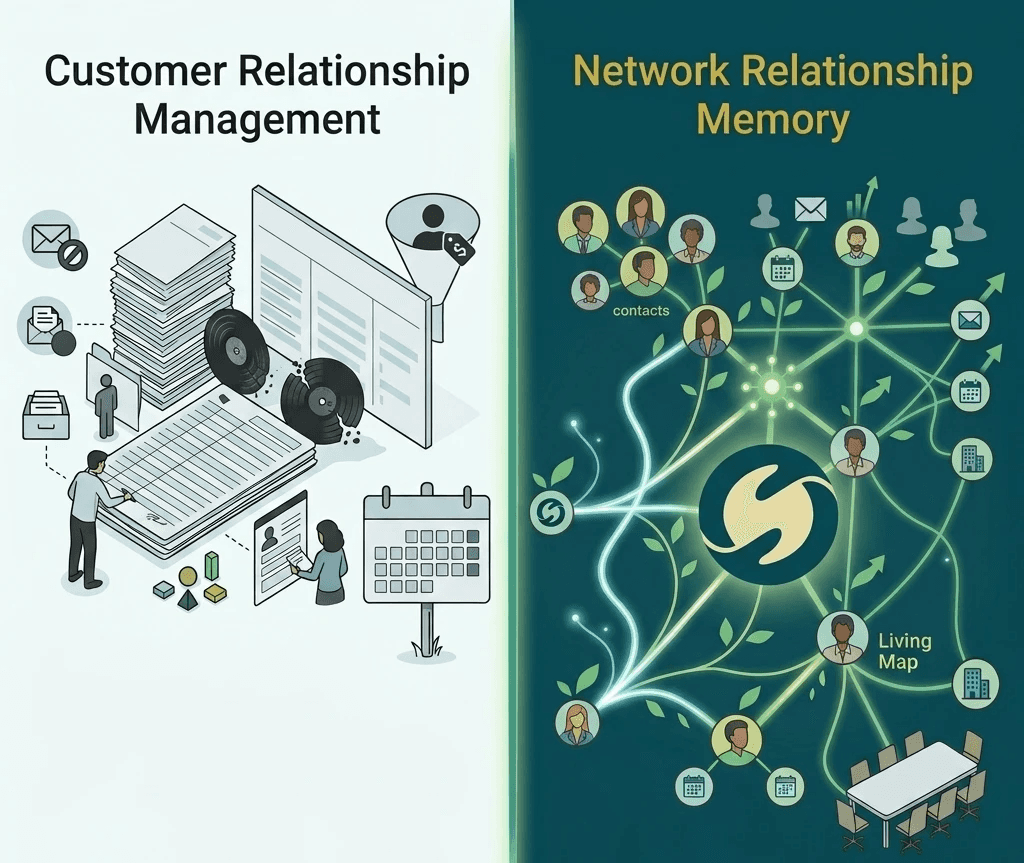
Unlike traditional CRMs that store information in rows and columns, O is a networking companion that builds memory over time across your conversations, notes, and interactions. It helps you remember everyone you've met, find the relevant people inside your network, and take action so you can nurture the relationships that matter.
This guide is organised by what you're trying to accomplish. Every section is short by design. You should be able to read any one in under a minute.
For a more detailed guide click here
1. Meet O
Home
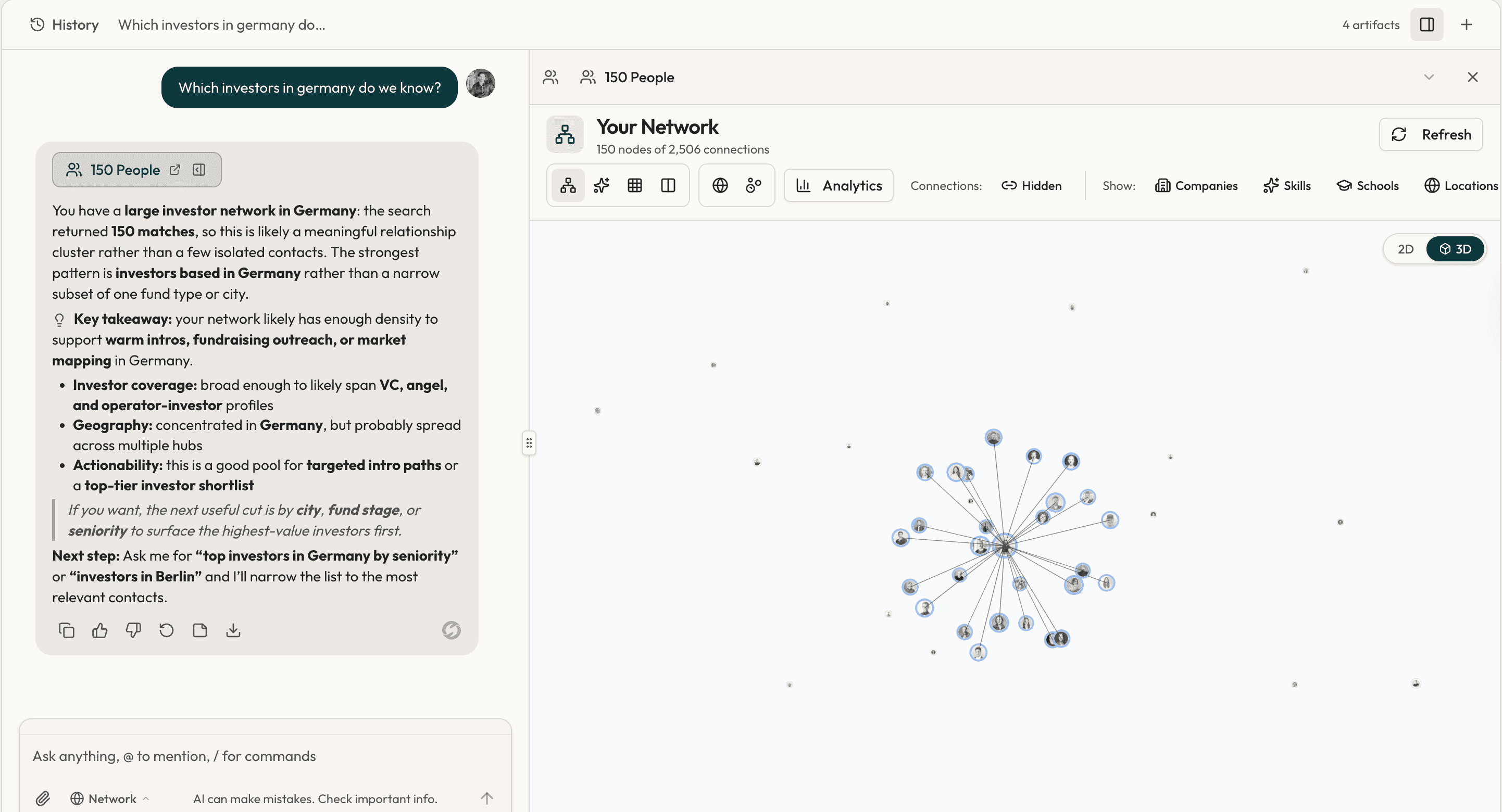
Home is where the agent lives. Ask questions about your network, search across people and notes, create reminders, and tag content to people, all by typing or speaking to it.
If you've used ChatGPT or Claude, the interface will feel familiar. The difference is that O has memory of your contacts, your notes, and your conversations.
Universal Search
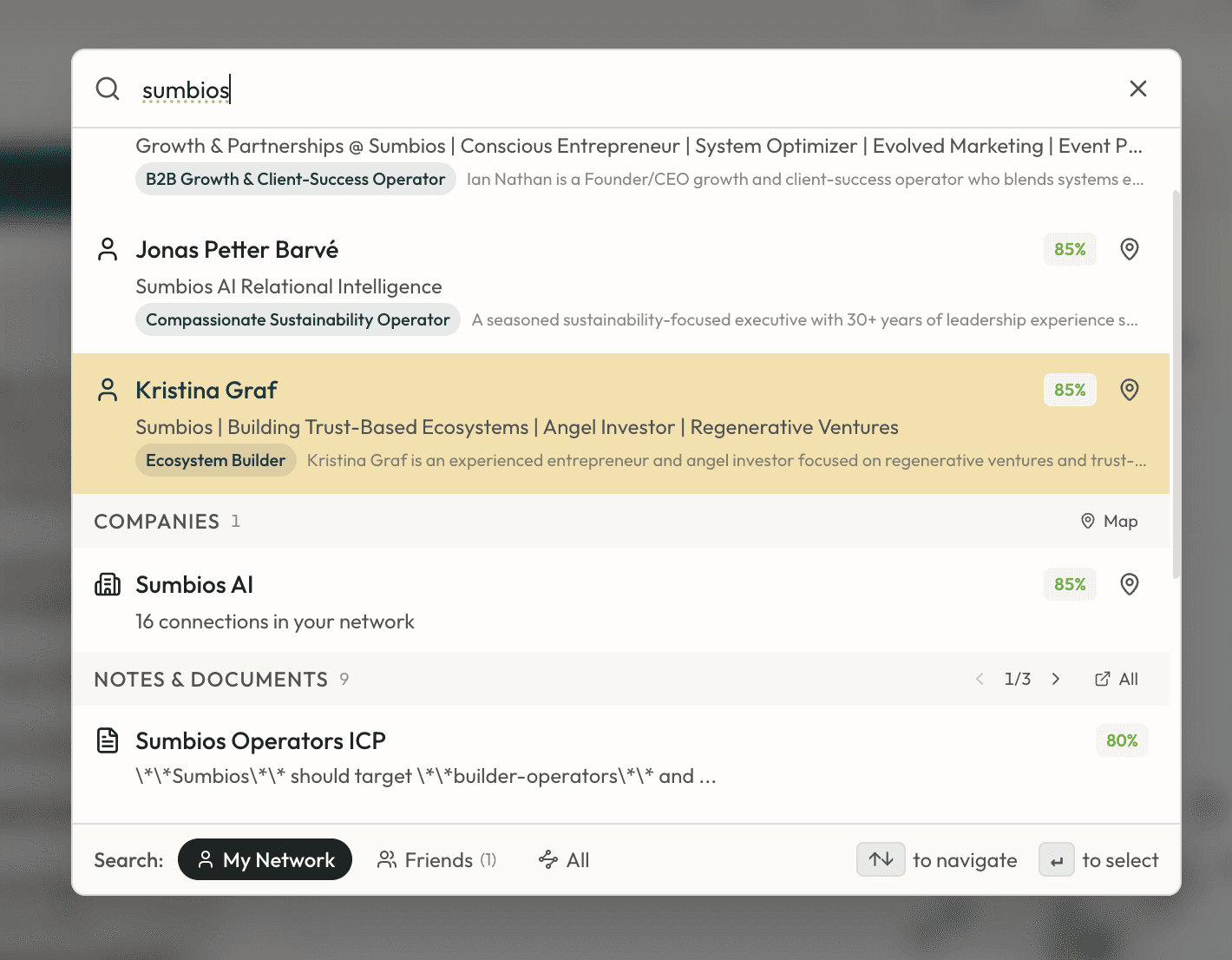
One search bar across everything in O: people, companies, documents, missions, workspaces, circles, messages. If it's in your system, it's findable from here.
2. People and companies
Profiles
A fully enriched profile contains summary, insights, lenses, recent activity, contact details, and any notes or reminders you've attached. Lenses let you view someone from different angles: as an educator, a marketer, a product person, or whichever frame is relevant to your goal.
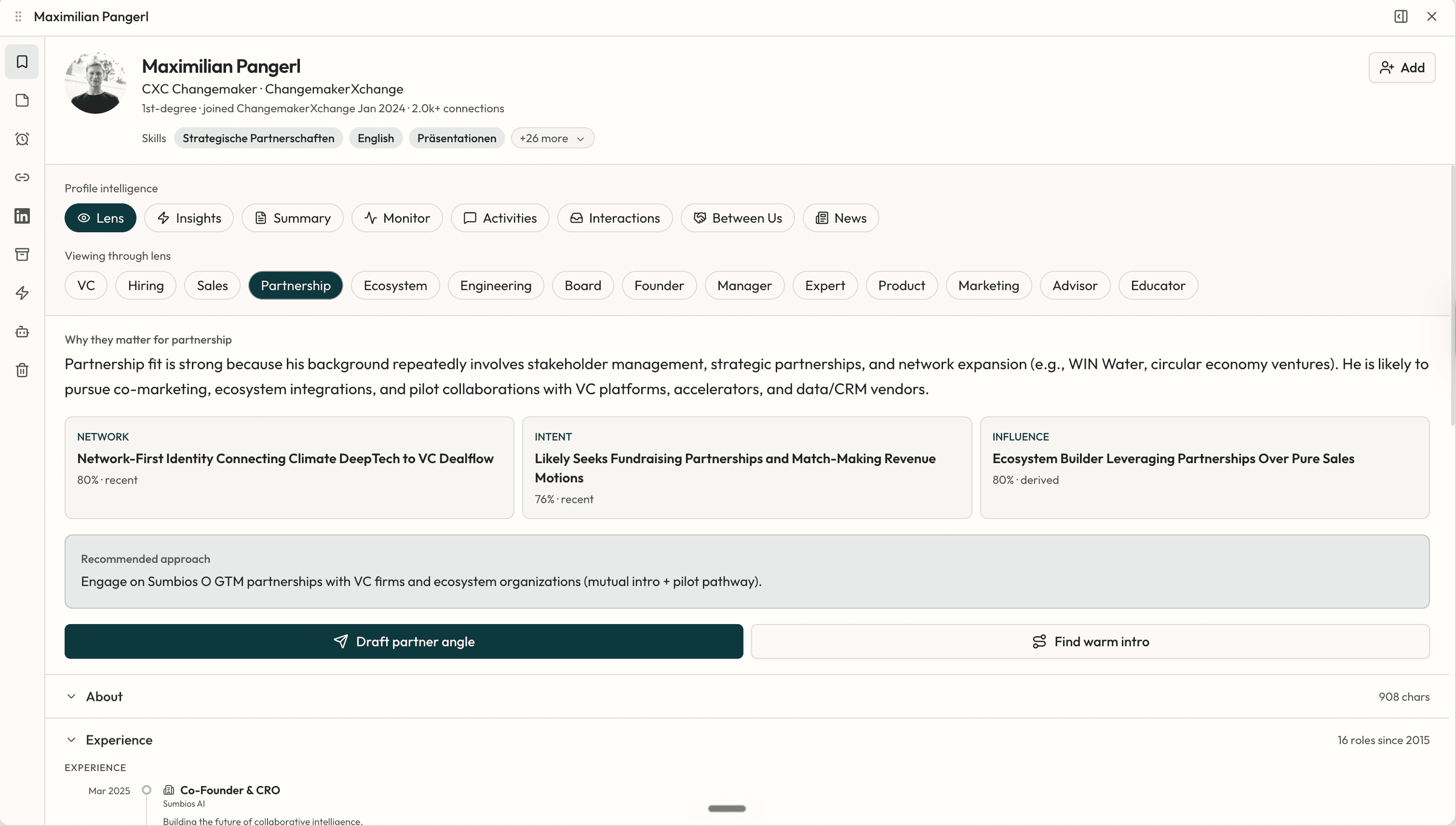
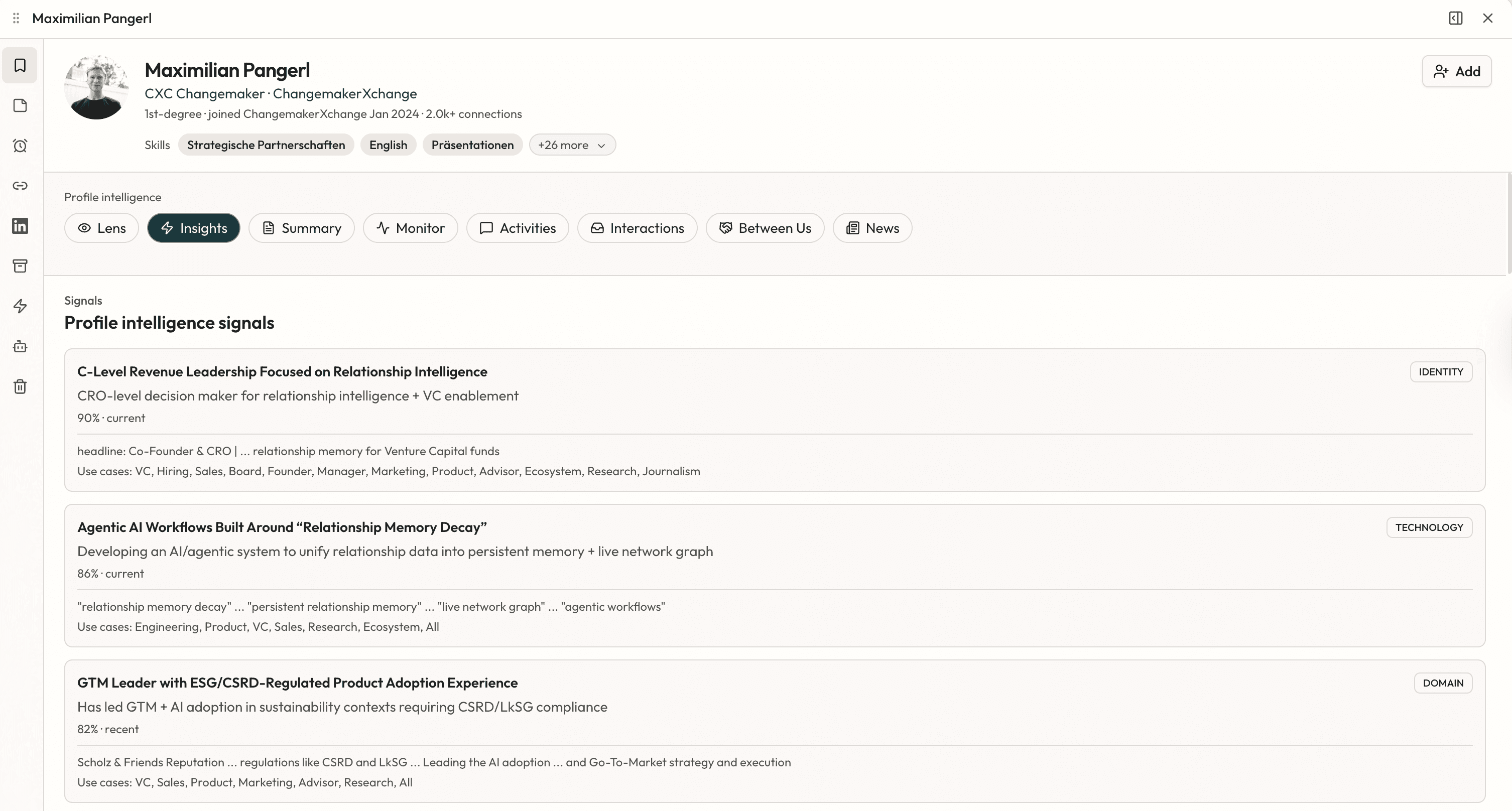
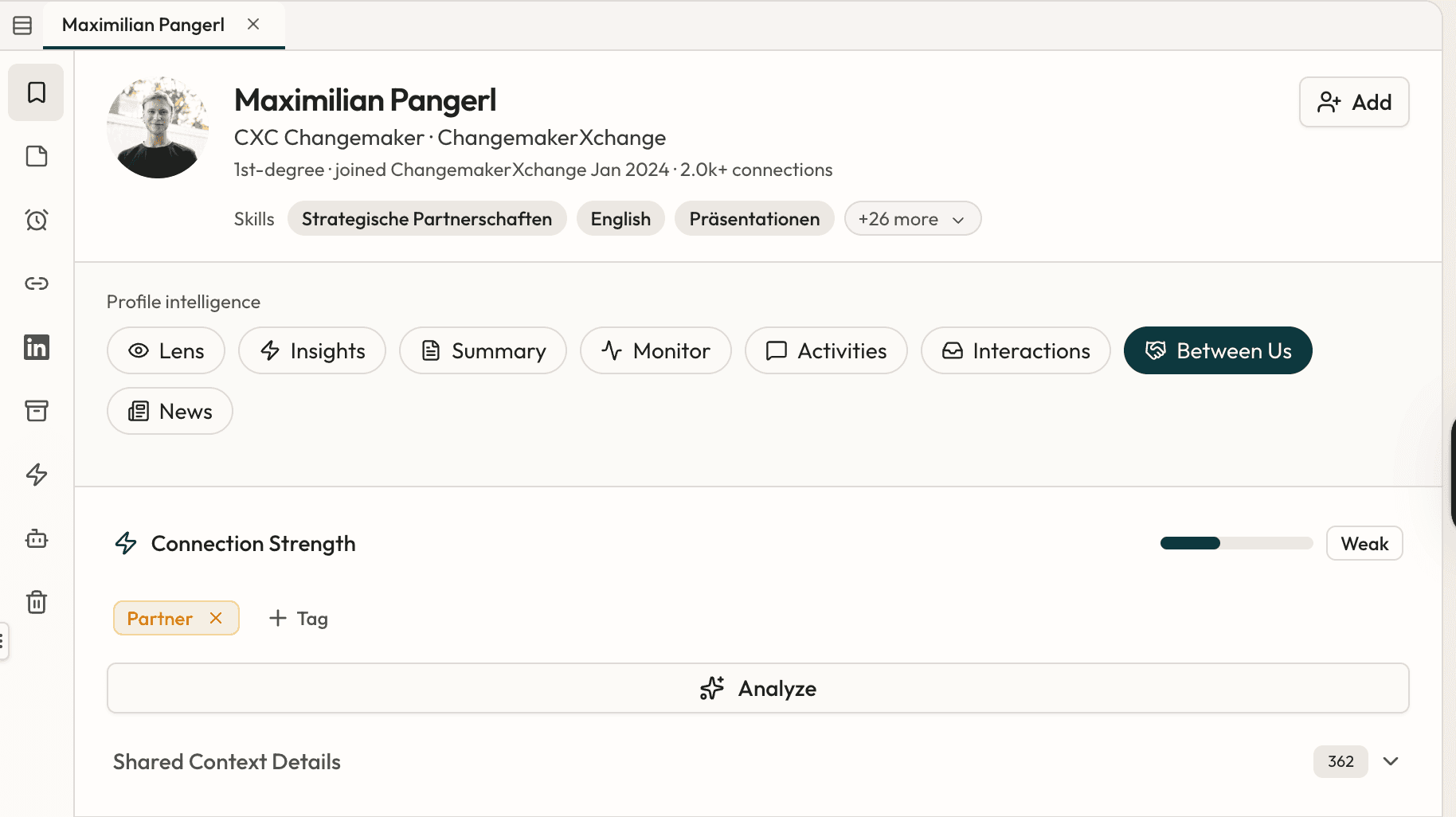
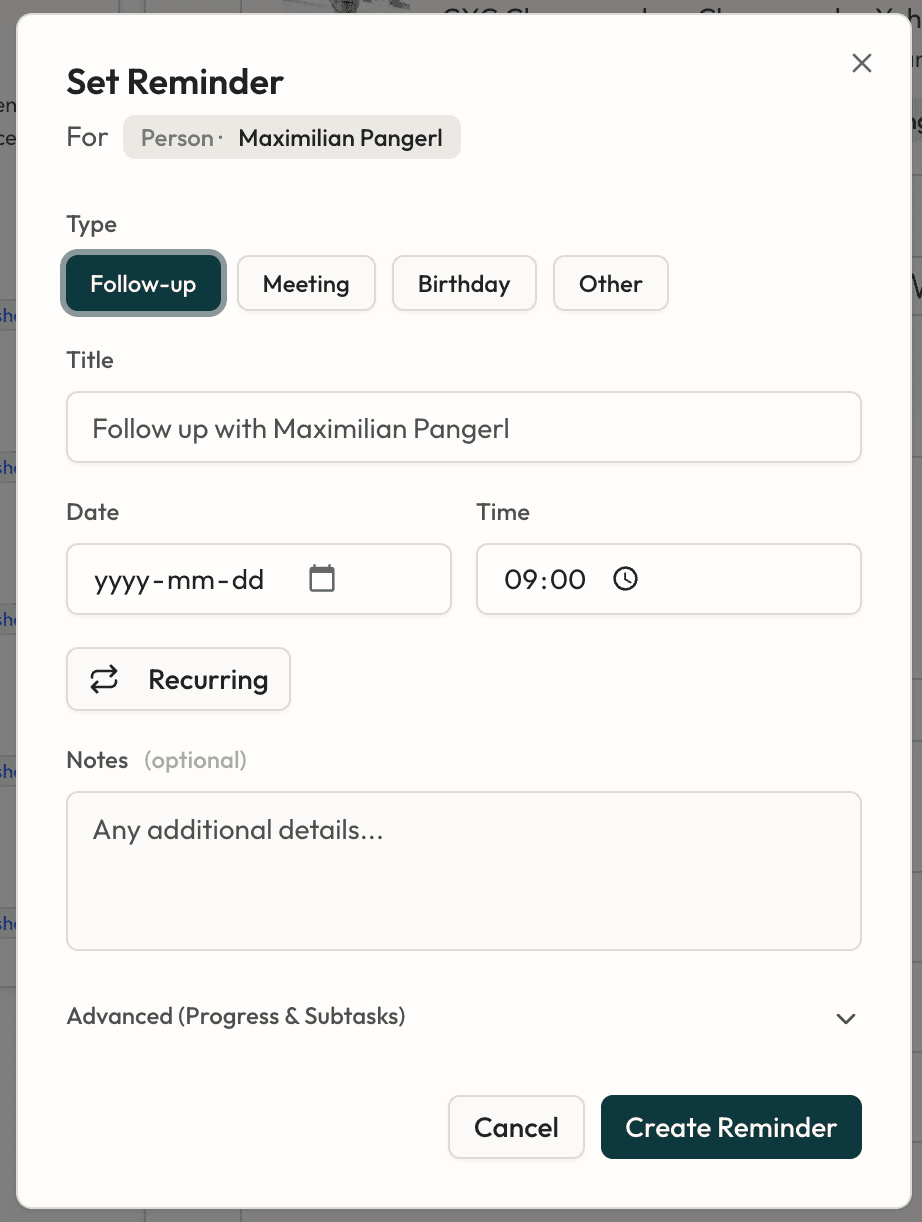
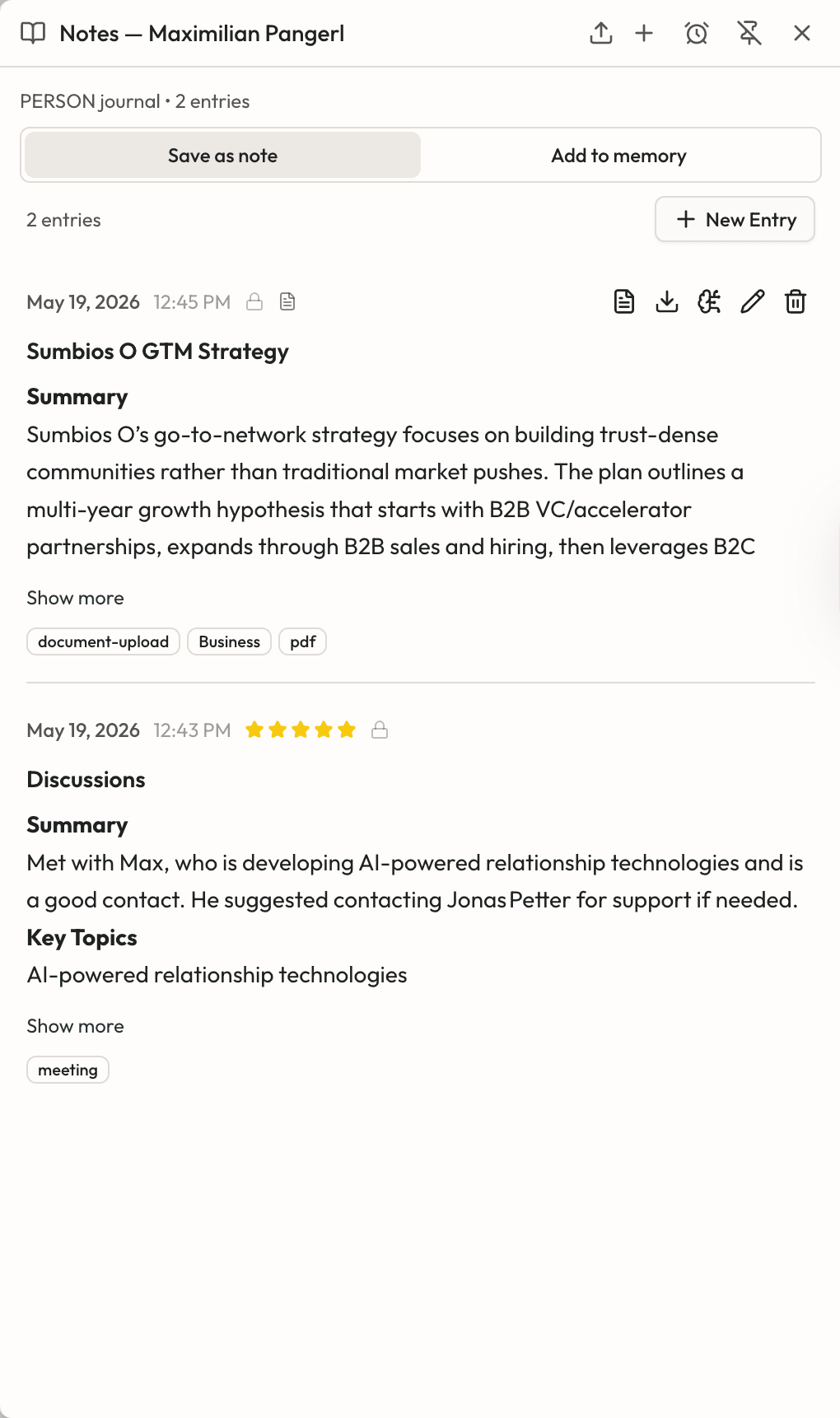
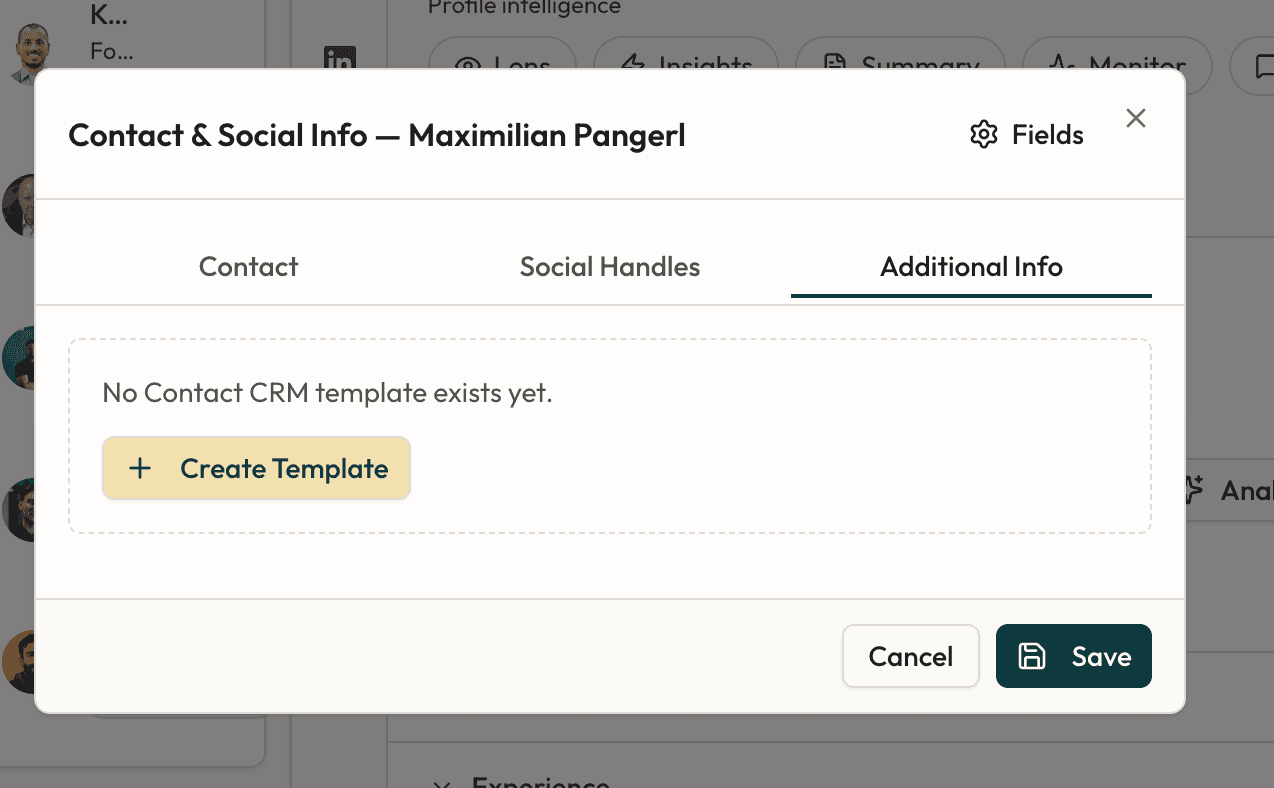
You can add custom fields and templates (for example, a "Founders" template tracking exits and current fundraising), set reminders, write notes, and ask O anything directly from the profile.
Companies
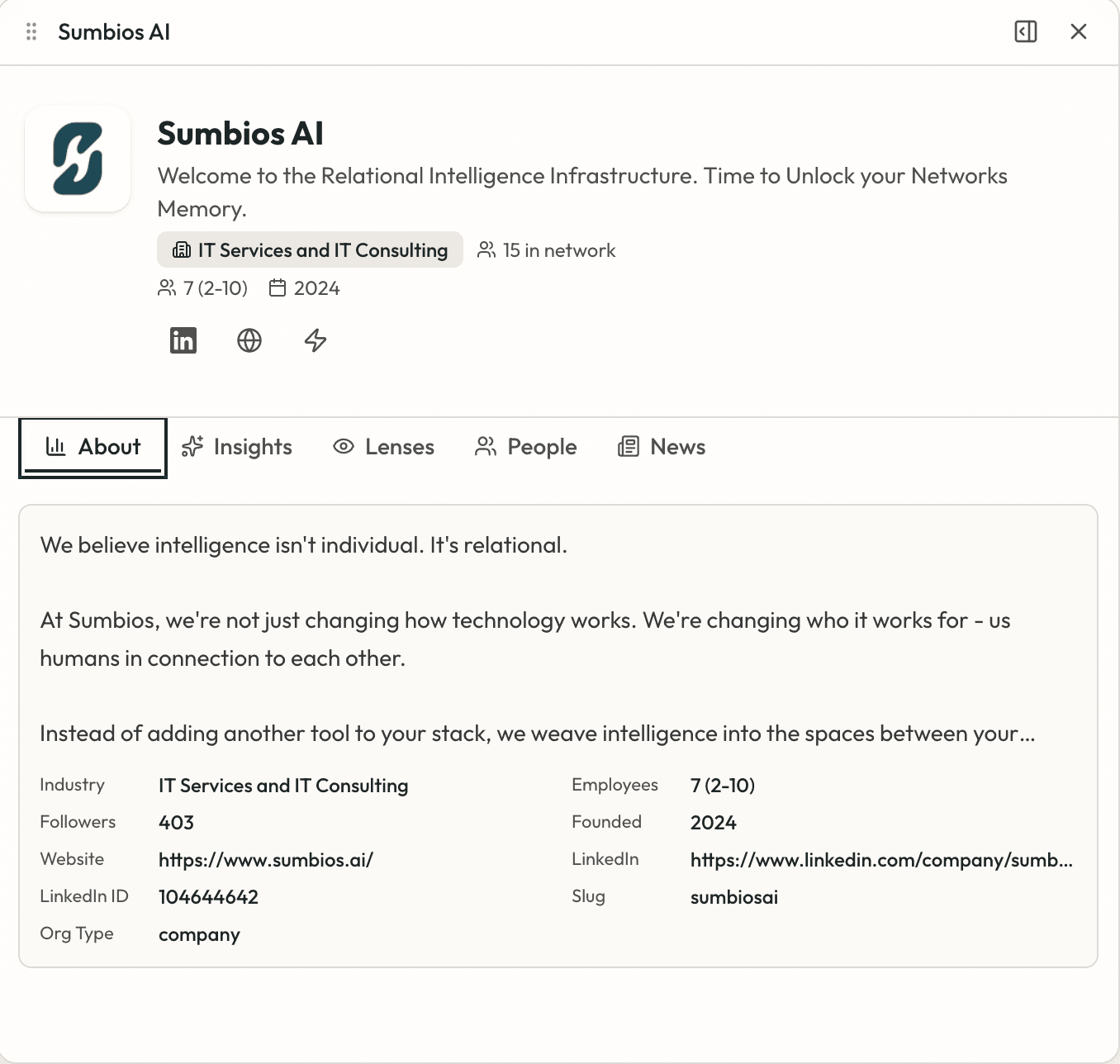
Companies have profiles too: summary, insights, lenses (strategic, partnership, competitive analysis), and a list of who in your network works or has worked there. Public information like website and LinkedIn is enriched automatically.
Tags
Tags are the simple way to label connections. Close friend, community builder, decision maker, great dancer, whatever matters to you. Tag once, then filter your network by tag any time.
3. Your network
Network views
Whenever you ask O a question, a network map opens. From there you can switch to 3D, group by company, skill, school, or location. Or move to a list view for selecting and exporting, an analytics view for distributions, or a map view for geographic spread.
You'll also find your friends here: people you've added in Sumbios with whom you can share networks, missions, and circles.
4. Network intelligence
Intelligence Dashboard
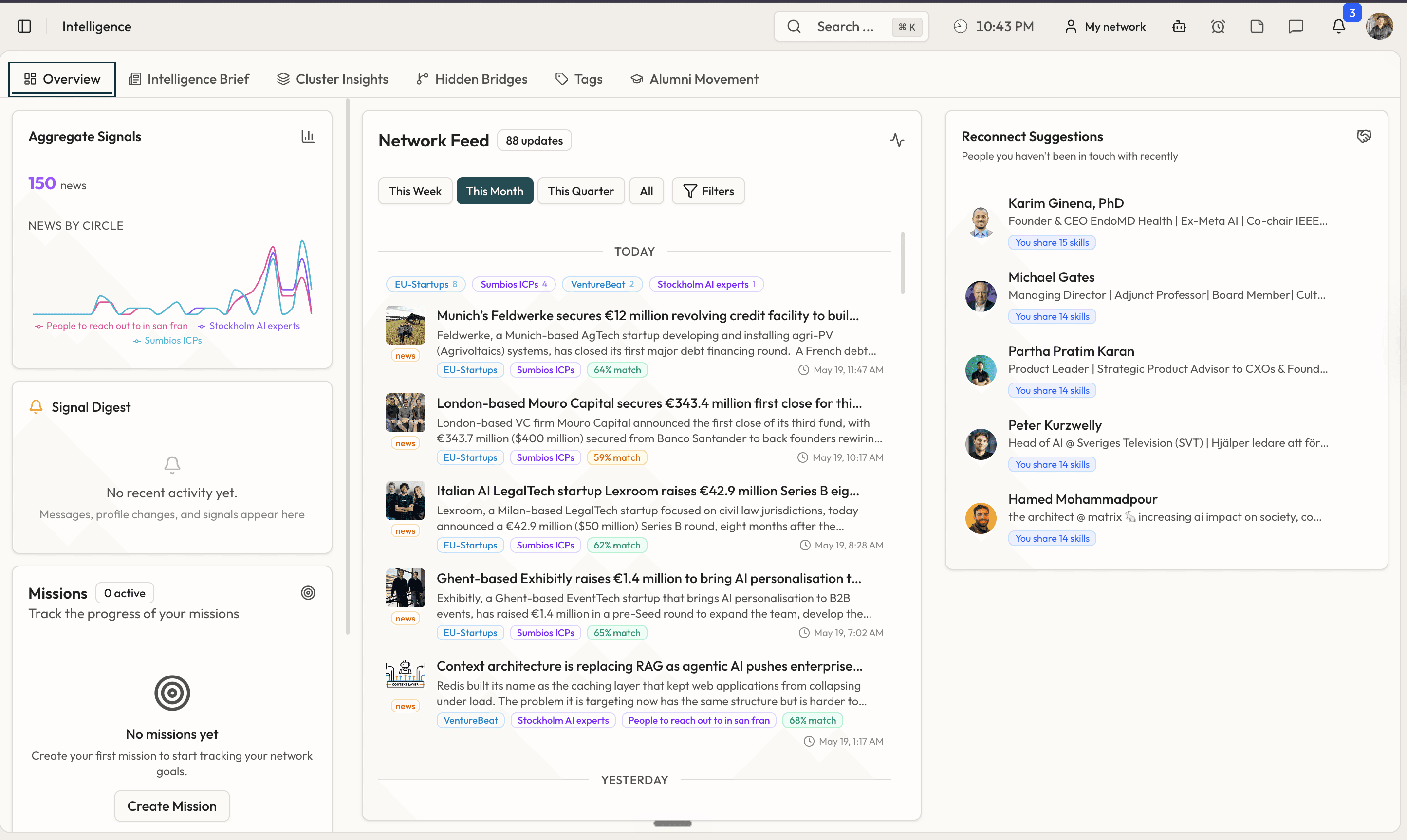
Your daily home base. The dashboard surfaces job changes, active missions, upcoming reminders, people you should reconnect with, and news relevant to your circles. Everything important happening around the people you care about, in one place.
Hidden Bridges
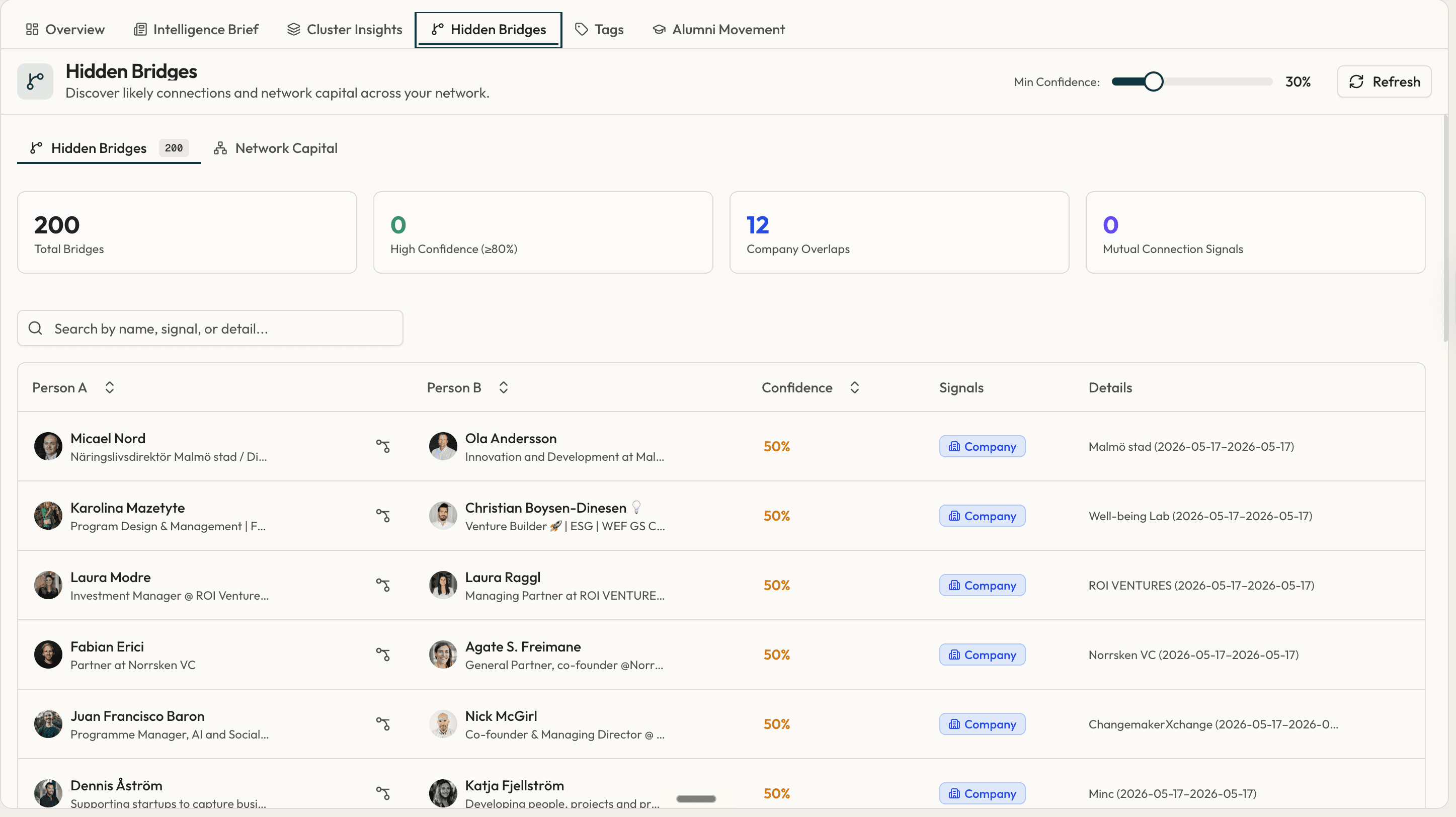
Signals showing who in your network can connect you across people, companies, or industries. These reveal shared workplaces, schools, or skills that make someone a strong connector. Useful for understanding your network capital and finding warm paths.
5. Memory
Notes & Documents
The most important feature for making O smarter over time. Notes can be anything: a meeting summary, a person's preferences, a go-to-market strategy, a transcript, a business plan. Upload documents (PDF, DOCX, TXT, Markdown, CSV, XLSX) or write directly.
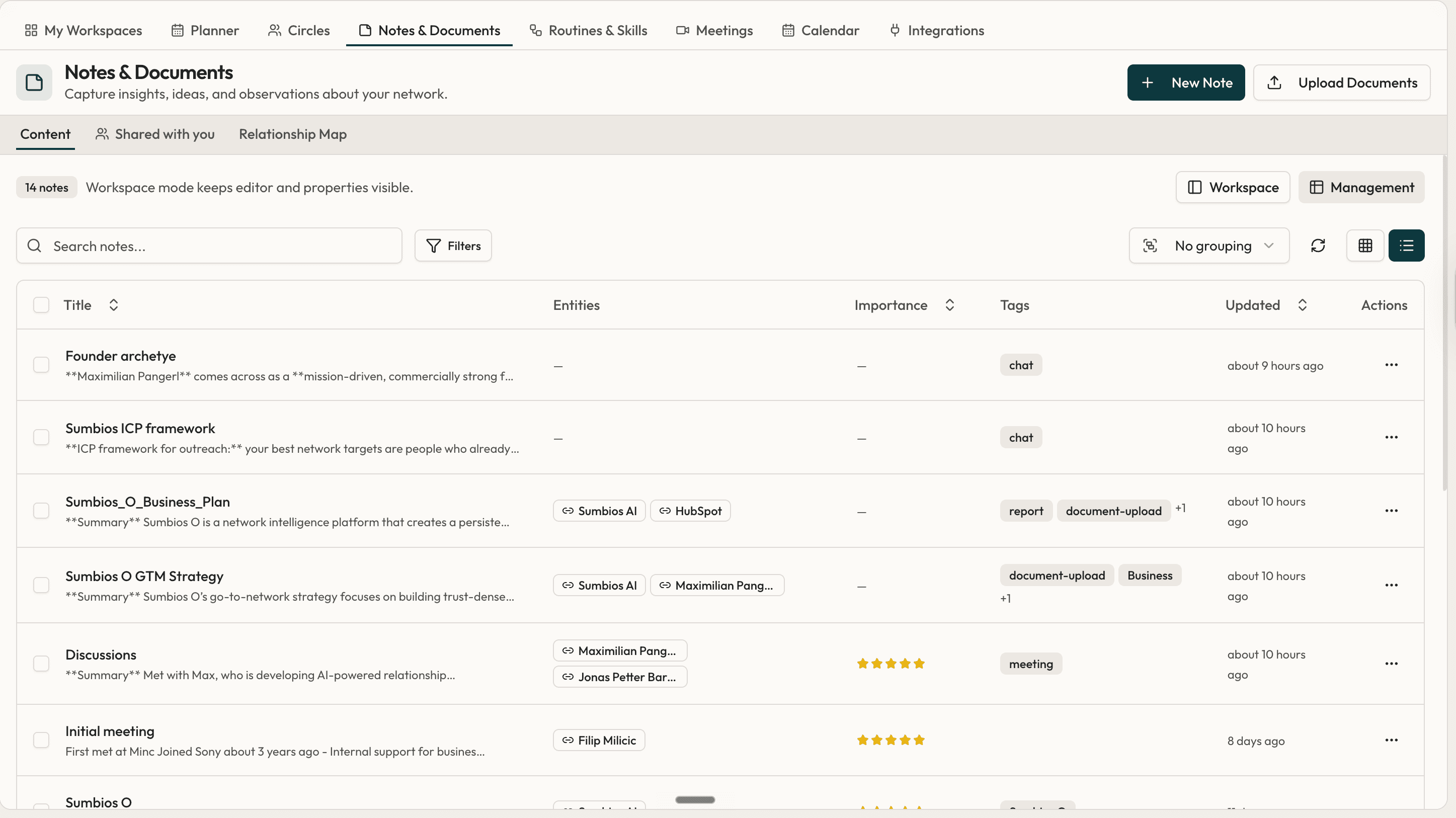
Once a note is in, ask O to improve it. O extracts entities, links the note to the right people and companies, suggests reminders, and turns the content into relational memory you can query later.
Reminders
Create reminders manually or by asking O. Reminders live in Notifications, on your Calendar, and on the relevant person's profile. You can also create them while browsing LinkedIn through the browser extension.
6. Activate your network
Circles
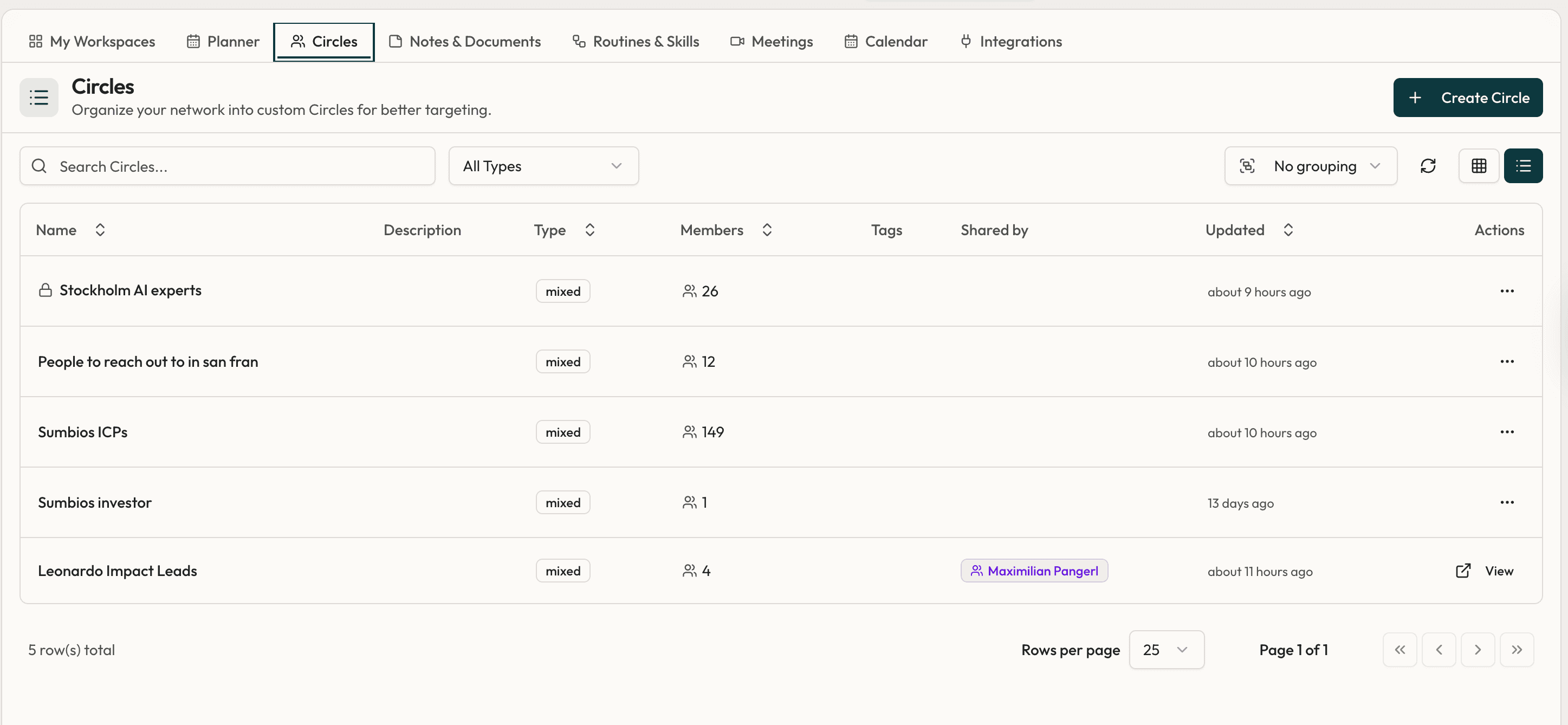
Circles are themed groups: investors, San Francisco trip, podcast guests, AI experts in the Nordics. Build a circle by selecting people from search results or browsing your network. Once built, a circle becomes a lens for news, activities, and company signals focused only on those people.
Workspaces & Missions
Workspaces are containers for goals (Sumbios fundraise, my podcast, recruiting for X). You can keep them private or share with friends, and you can let missions in a workspace reason across your friends' networks too.
Inside each workspace, missions turn an objective into a continuous recommendation engine. Define what you're looking for (role, sector, location, seniority, due date) and O surfaces relevant people from your network and your friends' networks.
Missions include a board view with custom stages (outreach sent, meeting booked, hired), custom fields, subtasks, and notes tied both to each person and to the mission as a whole. This is where insight becomes action.
7. Move data
Export
Export individual people, network artifacts, full chats, or entire circles. Formats: Excel, CSV, Markdown for data; PDF for chats. Useful for sharing lists with collaborators or bringing context into Claude or other tools.
Browser Extension
Quickly add notes, create reminders, and search O while you're browsing LinkedIn or anywhere else on the web. Captures context at the moment it happens, so nothing is lost between tabs.
Each section is designed to stand alone. Lift any entry into a tooltip, help panel, or Notion sub-page without rewriting.